
3 underrated Squarespace settings DIY sites miss (that are costing you leads)
Your Squarespace website looks good. You’ve made it mobile-friendly (honestly, well done! That used to be a nightmare), the photos look great, the colours play nicely together, and you’ve finally stopped second-guessing every design choice.
But people are still bouncing off your site faster than they abandon Netflix shows with subtitles.
And here’s the thing: I see the same issues on DIY Squarespace sites. Not design problems (those are another conversation) but boring little technical settings that most people either don’t know about or just… forget to check.
Which is frustrating, because they’re easy to fix but make a massive difference to whether visitors actually trust your site enough to get in touch.
So today, we’re talking about three underrated Squarespace settings that could be quietly costing you leads and how to fix them in a few clicks:
1️⃣ SSL certificates – the little lock icon that tells Google (and your visitors) that your site is safe.
2️⃣ Analytics setup – because you can’t improve what you don’t measure.
3️⃣ SEO titles – what people see before they even land on your site.
Small tweaks, big difference. Let’s dive in.
SSL Certificates
Right, so this one is going to sound really technical but it's actually dead simple.
If your website doesn't have "https://" at the beginning of the URL (note the 's'), browsers are literally putting up warning signs telling people not to trust you.
I’m sure you’ve clicked a link before and you get a warning that it’s not secure? An SSL certificate is like a padlock/security system quietly protecting your website visitors and making sure they know they’re in the right place.
Without it, your website is basically screaming "suspicious business, proceed with caution."
The thing is, Squarespace gives you SSL certificates for free. They're included. You just have to... turn them on.
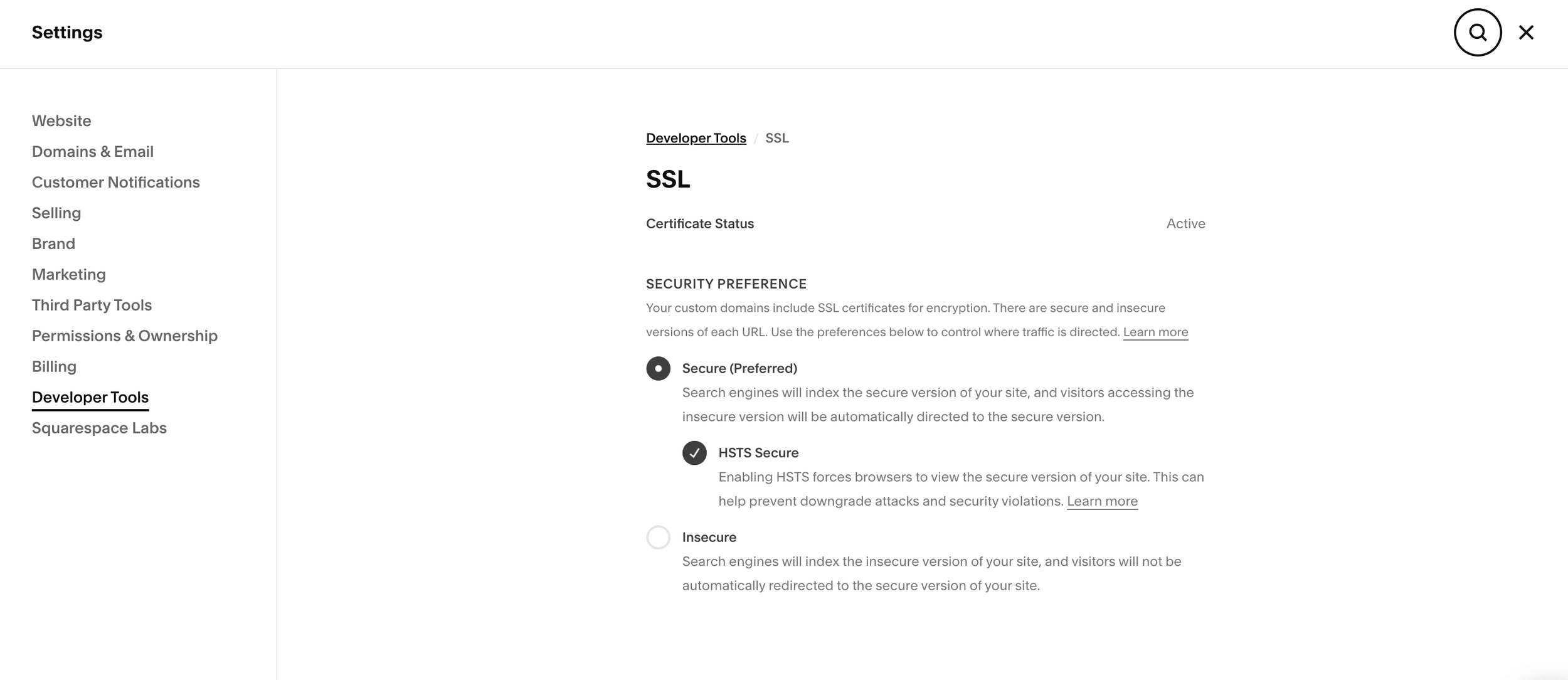
Go to Settings → Developer Tools → and make sure "HSTC Secure" is selected. That's it. Wait 24-48 hours and your site will show as secure.
It's free. It takes two clicks. But sometimes people miss it, and then wonder why potential clients seem hesitant to share their contact details.
Would you enter your email on a website your browser was warning you about? Neither will your clients.
SEO Titles
This one is easy to forget. Google your business name right now and look at what appears under your website link in the search results.
If it says something like "Welcome to my website where I offer services to help you..." or just random chunks of text from your homepage, we need to fix this immediately.
You've spent ages crafting your homepage copy, but you've forgotten about the bit that people actually read first - the search result description.
Your competitors' results are saying things like "Helping service-based entrepreneurs scale to six figures without the overwhelm" while yours says "Hi, I'm Sarah and welcome to my website."
Which one are you clicking on?
Here's the thing - you can control what appears in those search results. In your Squarespace pages, hover over any page, click the settings icon, then the SEO tab. Write actual descriptions that make people want to click.
Not just for your homepage. Every page. Your about page, your services, your blog posts. They all need descriptions that sell what's on that page.
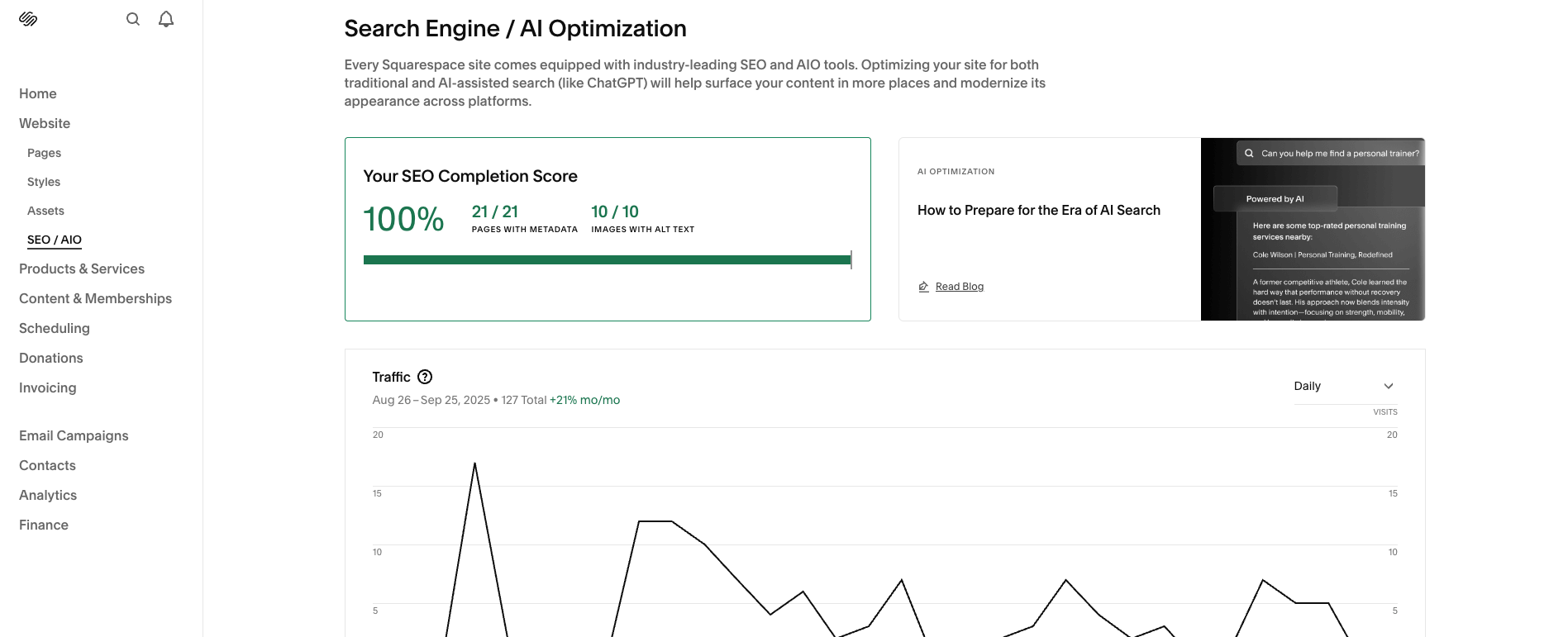
Squarespace has made it easier with the SEO/AIO tools that gives you a clear overview of what percentage you’ve completed.
Analytics
This one I see often, and I get why - we get so caught up in making things look good that we forget websites have actual jobs to do and data helps us understand what’s working and what’s not.
I get it. You're putting effort into social media, maybe networking, possibly even running ads. People are visiting your website. But you have absolutely no idea what happens next.
Are they staying or leaving immediately? Which pages are they actually looking at? Where are your best enquiries coming from?
You're basically running your business with a blindfold on and wondering why everything feels so unpredictable.
Setting up Google Analytics properly (not just sticking the code in and hoping for the best) means you can actually see what's working and what isn't.
Settings → Advanced → External API Keys → add your Google Analytics code. Then set up goals for contact form submissions, newsletter signups, whatever matters for your business.
This might take a bit of time to set up but then you'll know things like: that blog post you spent hours writing? It's bringing in loads of traffic but zero enquiries. That Instagram post you thought flopped? It's actually converting really well.
Data beats guesswork every single time. Though I'll admit, I avoided setting this up for ages because it felt too technical. Turns out it's just clicking through some menus and copying a code.
The Bigger Picture
Look, these aren't revolutionary changes. Your website isn't going to transform overnight because you fixed your SSL certificate.
But here's what the data says - people are making trust decisions about your business in about three seconds. Before they've read your about page, before they've seen your testimonials, before they've even properly understood what you do.
If your search results are rubbish, your site shows security warnings, and you can't tell which marketing efforts actually work, your website is letting you down. And all because nobody told you these things mattered.
I see brilliant businesses with websites that accidentally undermine their credibility every day. It's fixable, it's not expensive (these three things cost nothing), but somehow they get overlooked.
Maybe because they're not exciting? Adding animations and changing fonts feels more important than checking SSL settings. But trust me, fix the boring stuff first.
Your potential clients are already comparing you to competitors who might have sorted these basics out. Don't lose enquiries over things you can fix in an afternoon.
What to Actually Do
Check your SSL - is your site showing as secure? Google your business - do the results make you sound interesting or generic? Set up analytics properly - can you see what's working and what isn't?
Start with SSL because it's quickest. Then tackle your search descriptions. Analytics last because it takes a bit longer but gives you ongoing insights.
None of this is glamorous, but it's the difference between a website that looks professional and one that actually functions like a professional business tool.
(Also, if you're thinking "this all sounds like too much faff," my Power Hour sessions are literally designed for sorting out exactly these kinds of technical things that have been sitting on your to-do list for months. Just saying.)
Squarespace technical issues driving you mad? Shoot me a message →
Sometimes you just need someone who knows the platform to sort things out quickly.